

NectarPay for Merchants — Step 5: Take Your First Payment
Pair your till, ring up a sale and get paid — step by step, with pictures.
What this step does: sets up your NectarPay till, then walks you through your first sale.
You'll need: Steps 1–4 done, and a device for your till — an Android phone, a computer with a web browser, or a Senraise H10P POS device.
Part A — Set up your till (one time per device)
On the device you'll use as your till, open app.nectar-pay.com/pos. The first time, it asks you to pair it with your store. There are two ways.
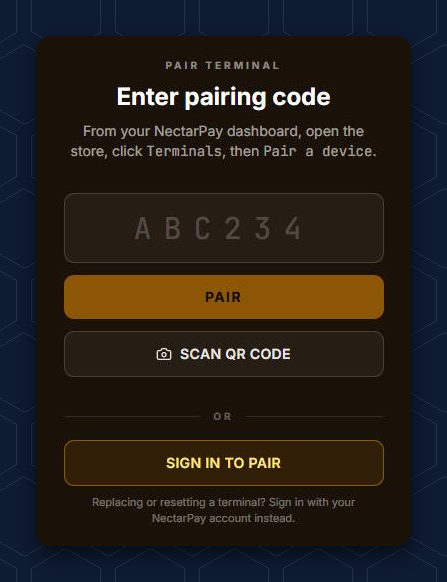
Way 1 — Sign in on the till
On the till, tap SIGN IN TO PAIR and sign in to your NectarPay account if it asks. Then tap your store. You can give the till a name, like Front counter, but you don't have to.
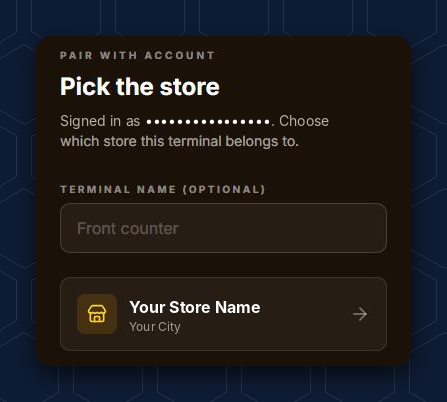
That's it — the till opens on the keypad, ready for Part B.
Way 2 — Use a pairing code (no sign-in on the till)
Use this if you'd rather not sign in to your account on the till itself.
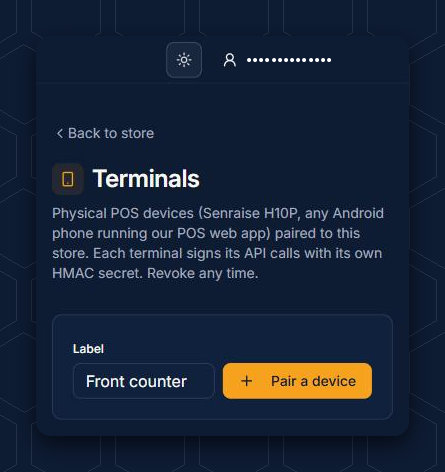
On your computer or phone, open your store in NectarPay, scroll down to Other Settings and tap Terminals.
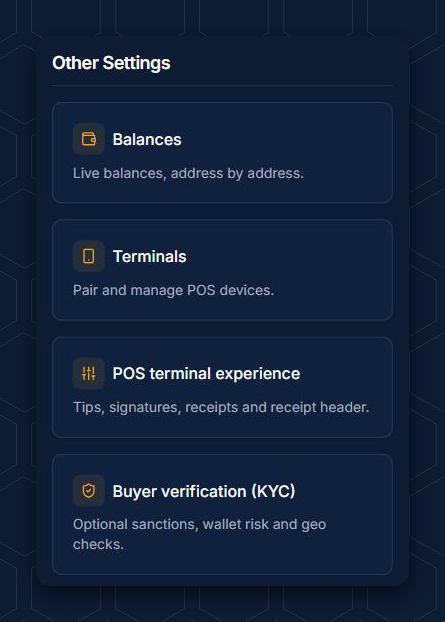
Give the till a Label and tap Pair a device. (Your paired tills are listed below, each with a trash can. Bee careful 🐝: the trash can revokes that till.)
NectarPay shows a 6-character pairing code and a QR code. They expire in 5 minutes.
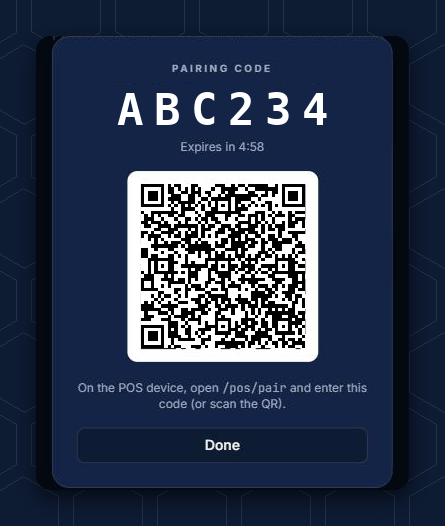
Now, on the till, type the code into the pairing screen above and tap PAIR — or tap SCAN QR CODE and scan it.

Your store's Other Settings also has POS terminal experience — it turns the tip screen, signature and email receipts on or off for every till at your store.
Set your tip choices and tax rate
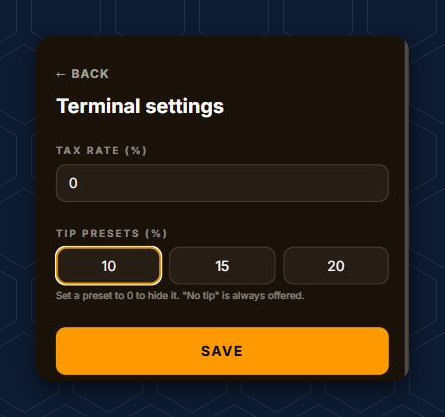
On the till, the two icons at the top right are History (the clock) and Settings (the gear).

Tap the gear to open Terminal settings. Set your TAX RATE (%) and your three TIP PRESETS (%), then tap SAVE. As the screen says: "Set a preset to 0 to hide it. 'No tip' is always offered."
Bee careful 🐝: further down, Terminal settings has a Danger zone with UNPAIR THIS DEVICE. Don't tap it unless you mean to — the till would have to be paired again.
Part B — Ring up a sale
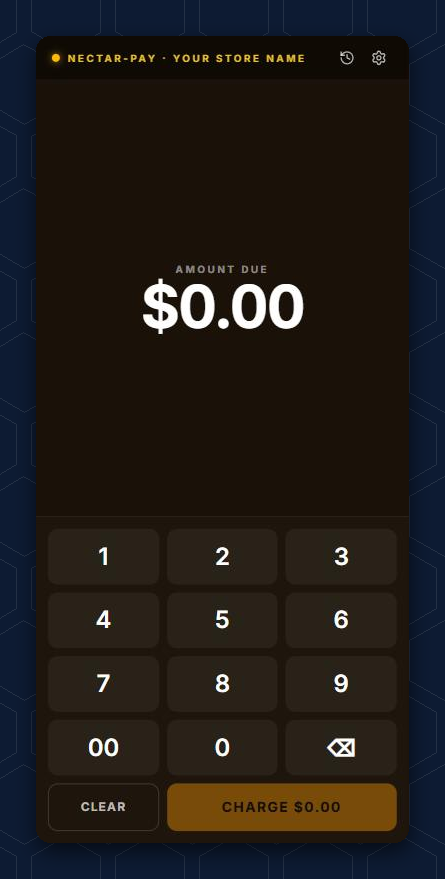
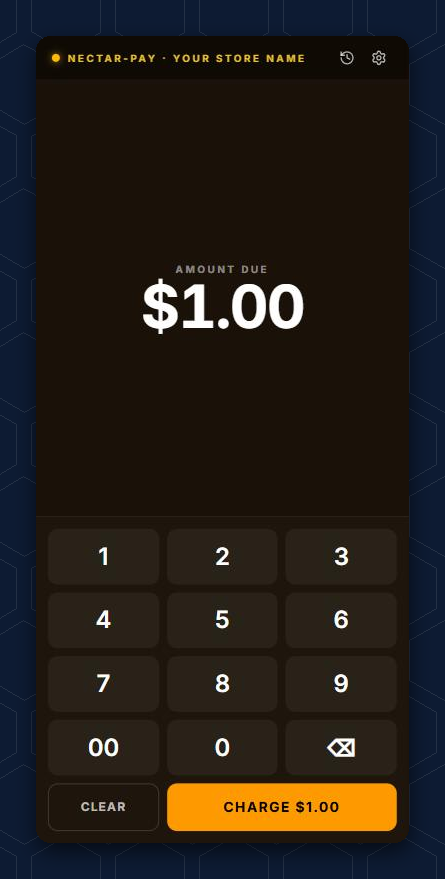
1 — You type the amount
The till types in cents, so 1 · 0 · 0 makes $1.00. Then tap CHARGE.
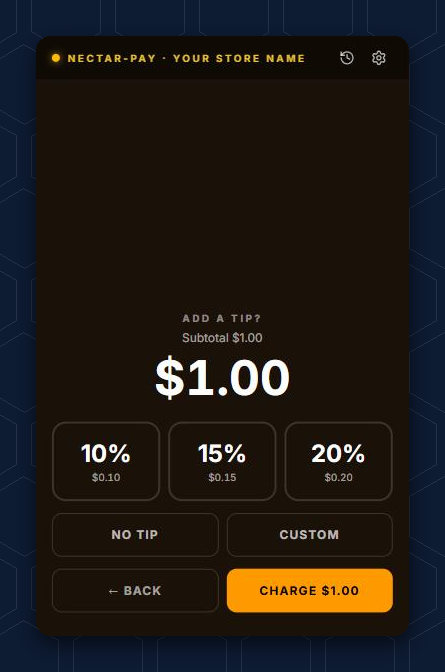
2 — Your customer picks a tip
Turn the till toward your customer. They can pick one of your tip choices (here 10%, 15%, 20%), NO TIP or CUSTOM, then tap CHARGE.
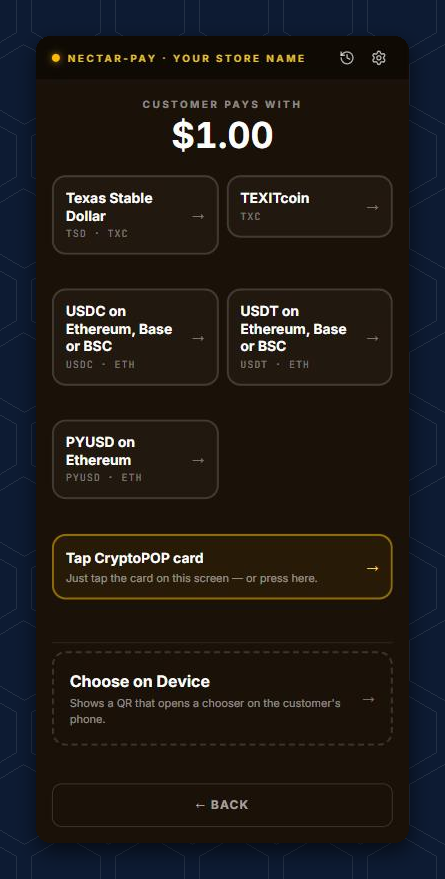
3 — Pick how they'll pay
The till lists the coins your store accepts. Ask your customer which one they'll pay with and tap it.
Or tap Choose on Device — it shows a QR that opens a chooser on your customer's phone, so they can pick for themselves.
You'll also see Tap CryptoPOP card. CryptoPOP (Proof of Participation) is our community rewards program. If your customer has a CryptoPOP card, they can tap it right on the screen. As the screen says: "Just tap the card on this screen — or press here."
4 — Your customer scans and pays
The till shows the amount, a QR code and a 15-minute countdown. Your customer scans the QR with their wallet and sends.
🐝 Not every wallet can read the QR while Include amount & token in QR is ticked. If your customer's wallet won't scan it, untick that box. The QR then holds just the address, and your customer types the amount and picks the coin themselves.
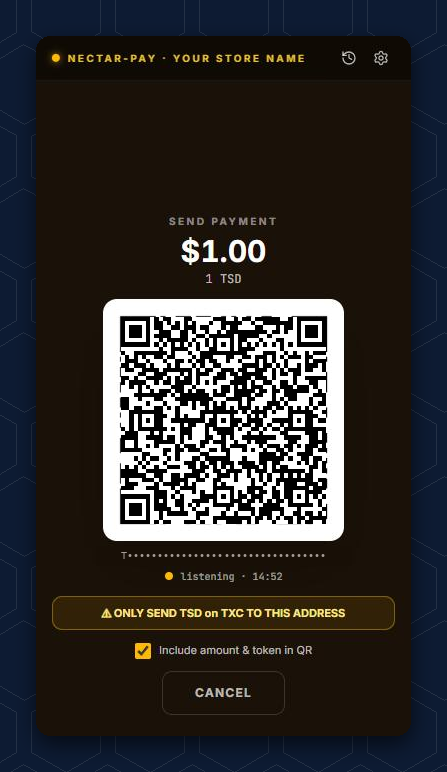

Your customer must send exactly the coin the till asks for. The till says it in yellow — for example, "ONLY SEND TSD on TXC TO THIS ADDRESS."
Customer changed their mind? Tap CANCEL on this screen.
5 — Paid! Sweet!
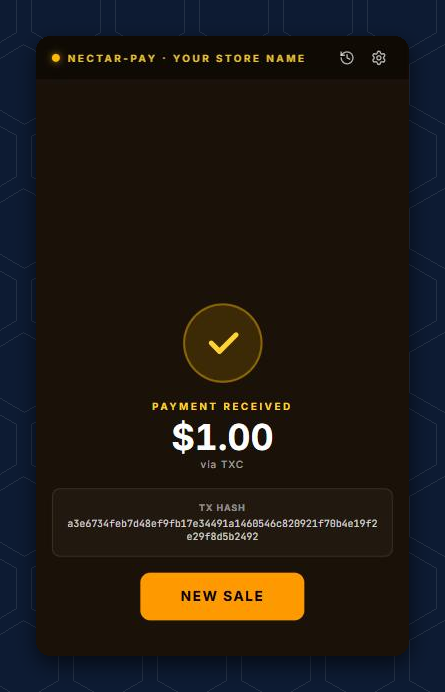
When the payment arrives, the till shows PAYMENT RECEIVED. Under your mempool cap that's a few seconds. Over it, the till waits for a confirmation (see 🍯 "The sticky stuff" in Step 4). The coins went straight to your wallet — the one you linked in Step 2 or 3. Tap NEW SALE for your next customer.
6 — See your sales
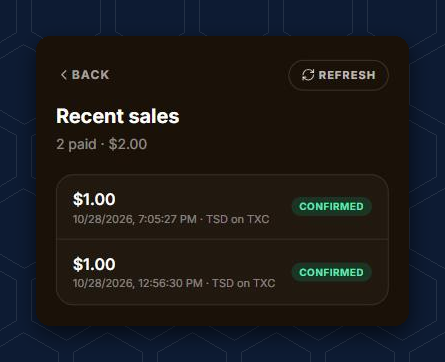
Tap the clock at the top of the till to see Recent sales — each one with its amount, time, coin and status.

Next: Step 6 — Advanced features
Questions? Buzz us — open a ticket.