

NectarPay for Merchants — Step 3: Link Your Wallet to Your Store
Connect your Beekeeper wallet to your NectarPay store so every payment lands in your own wallet.
What this step does: connects your Beekeeper wallet to your NectarPay store, so every payment lands straight in your wallet.
You'll need: your Beekeeper wallet (Step 1) and your NectarPay store (Step 2). Two screens open helps — NectarPay on a computer and Beekeeper on your phone — but one device works too.
Linked your wallet on Screen 3 of Step 2? Just check it: open Wallets & Chains (section 1 below). If it says Beekeeper.money wallet linked, you're done — skip to Step 4. Skipped that screen? Follow all six sections.
Is this safe? Yes. Beekeeper only shares watch-only keys (called xpubs) so NectarPay can create a fresh payment address for each sale. Your 12 words and private keys never leave your device — NectarPay can see payments arrive, but can never move your money.
1 — Open Wallets & Chains
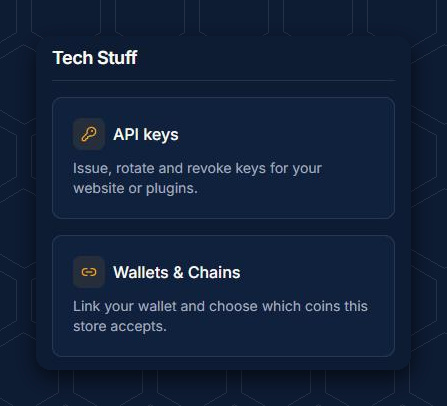
In NectarPay, open your store and scroll down to Tech Stuff. Tap Wallets & Chains.
2 — Start the link
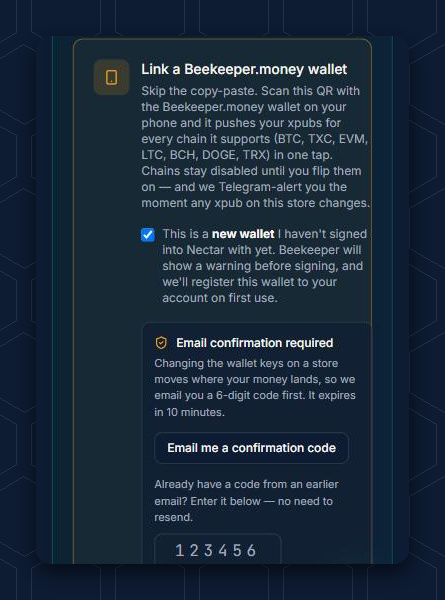
Find the box Link a Beekeeper.money wallet. If this is the first time this wallet has been used with NectarPay, tick "This is a new wallet I haven't signed into Nectar with yet." Then tap Email me a confirmation code.
3 — Get your code
NectarPay emails you a 6-digit code. It expires in 10 minutes and works once.
The email comes from noreply@nectar-pay.com with the subject "Confirm a wallet key change on your store."
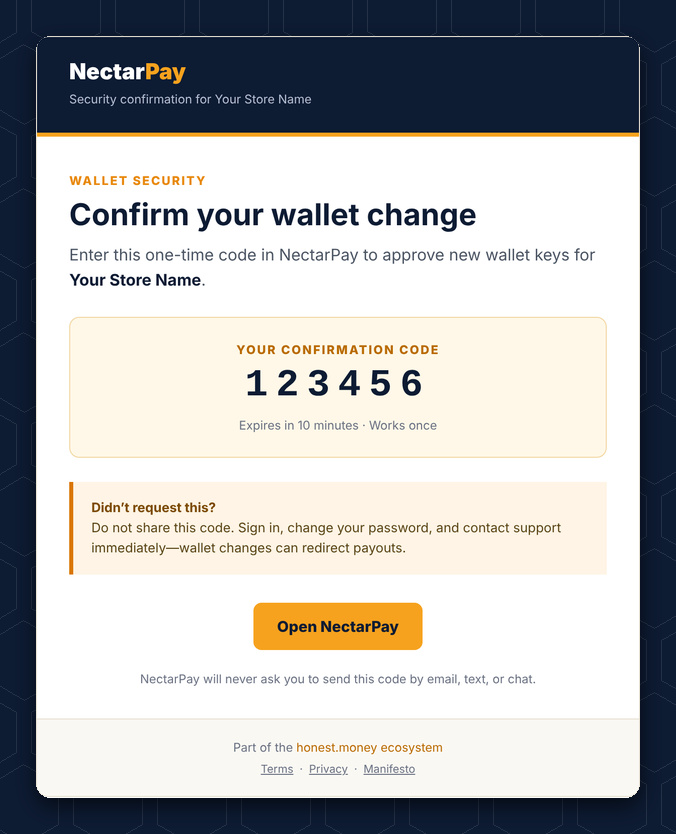

Didn't ask for a code? Don't share it with anyone, and buzz us right away. This code changes where your money lands. NectarPay will never ask you to send it by email, text or chat.
4 — Get the link QR
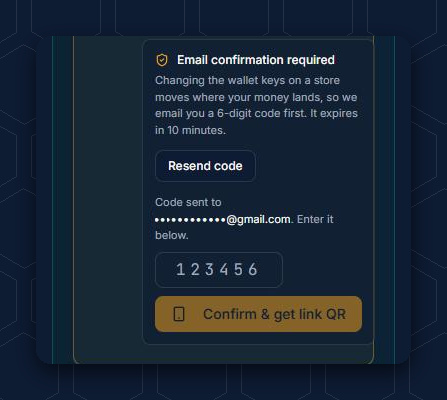
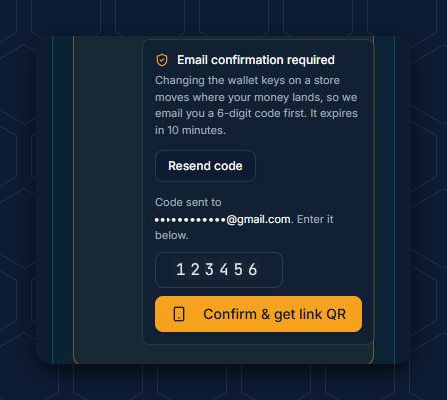
First, open Beekeeper and unlock it with your wallet password — bee careful 🐝 to tap Unlock, not Import a different wallet. Then, back in NectarPay, type the code and tap Confirm & get link QR.
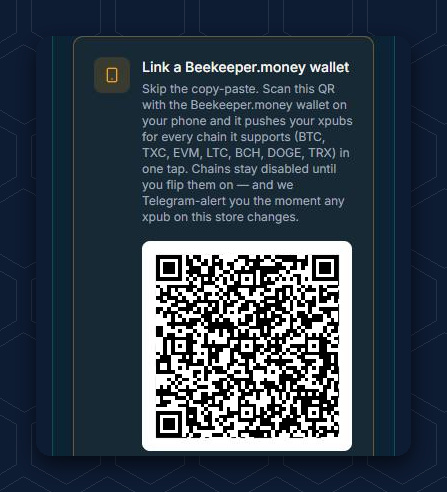
NectarPay shows a QR code and a link. They expire in 5 minutes, so have Beekeeper ready. Ran out of time? NectarPay shows "Code expired — generate a new one." Tap Cancel and start again from section 2.
5 — Share from Beekeeper
In Beekeeper, on your wallet's home screen, find the Link to Nectar Pay box:
🐝 On your phone: tap the camera button and scan the QR on your NectarPay screen.
🐝 On the same device: copy the link from NectarPay, paste it into the box and tap Read.
Beekeeper shows what NectarPay is asking for. Tap Share xpubs.
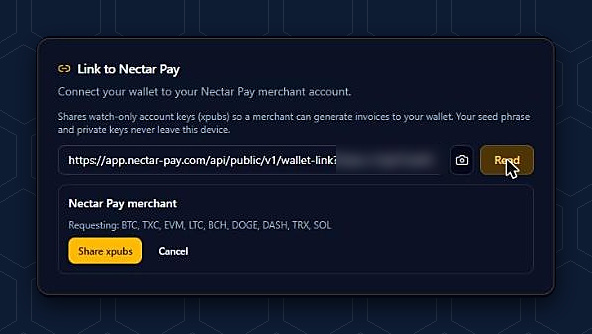

After you tap Share xpubs, the box simply disappears in Beekeeper — that's normal. Look at your NectarPay screen for the confirmation.
6 — You're linked — the honey flows to your wallet!
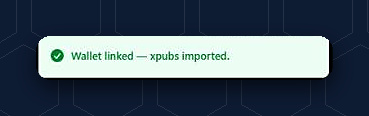
Back in NectarPay you'll see "Wallet linked — xpubs imported."
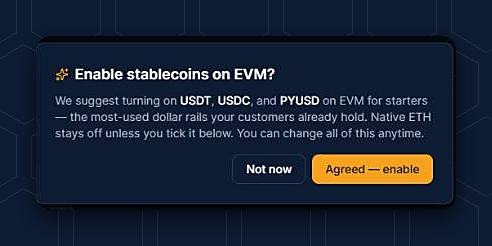
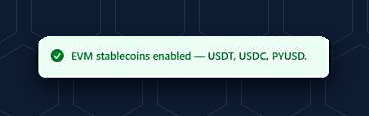
NectarPay then offers to turn on the most-used dollar stablecoins — USDT, USDC and PYUSD. Tap Agreed — enable, or Not now — as the screen says, "You can change all of this anytime."
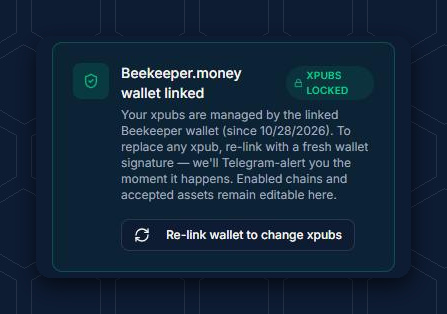
Your store now shows Beekeeper.money wallet linked with XPUBS LOCKED.
Next: Step 4 — Choose what your store accepts
Questions? Buzz us — open a ticket.