

NectarPay for Merchants — Step 6: Advanced Features
Share links, invoices, receipts, reports, alerts, payment checks and team access — the extra tools in your NectarPay dashboard.
What this is: a quick buzz around the extra tools in your NectarPay dashboard. You don't need any of them to take payments — pick what helps your business.
You'll need: Steps 1–5 done.
1 — Get paid without a till
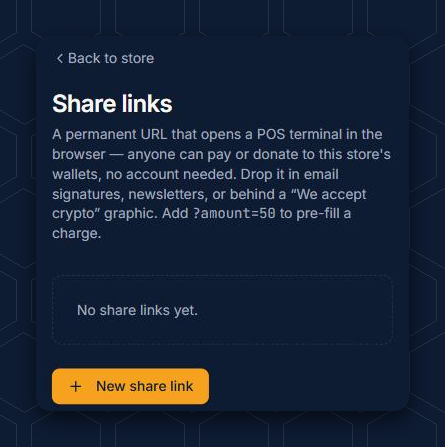
Share payment links. Open your store → Get Paid → Share payment links. A share link is "a permanent URL that opens a POS terminal in the browser — anyone can pay or donate to this store's wallets, no account needed." Put it in an email signature, a newsletter or a "We accept crypto" button. Tap New share link to make one. Tip from the page: "Add ?amount=50 to pre-fill a charge."
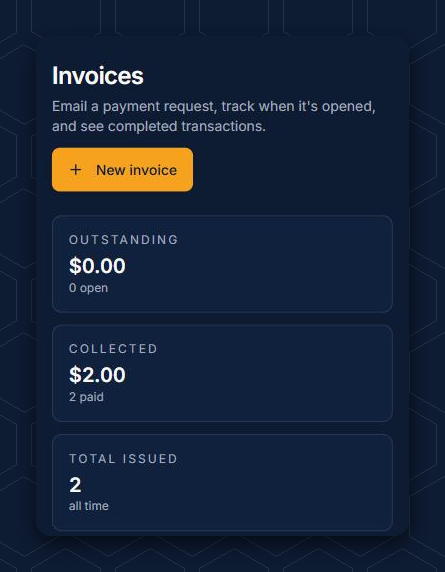
Send an invoice. Open your store → Get Paid → Send an invoice. Email a payment request, see when it's opened, and see what's been paid. Tap New invoice to start.
2 — Set up your counter
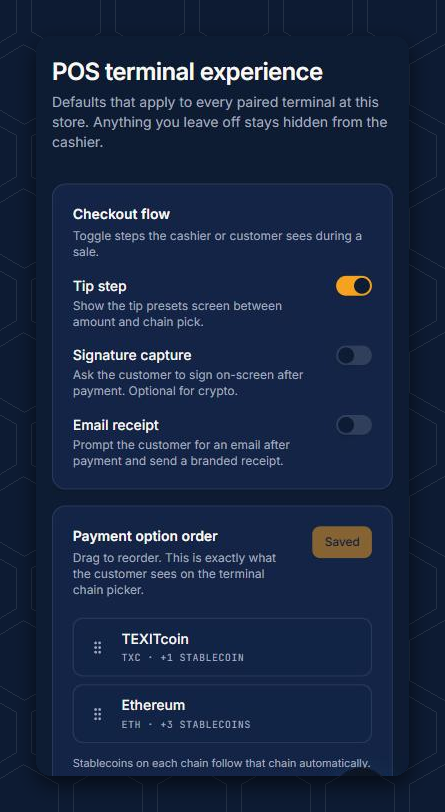
Open your store → Other Settings → POS terminal experience. These settings apply to every till at that store:
🐝 Checkout flow — turn the Tip step, Signature capture and Email receipt on or off.
🐝 Payment option order — drag the coins into the order your customers see them.
🐝 Receipt header — your business name, tax ID, logo, address and a footer note.
🐝 Operator controls — a 4-digit cashier PIN, quick-item buttons and custom tender labels.
🐝 Receipt delivery — email and text receipts (for texts the screen notes "pricing applies"), and reprints.
🐝 Money handling — voids (cancel an unpaid invoice), holds/open tabs, recording cash or card sales, and an end-of-day report.
Remember to tap Save changes at the bottom.
3 — Keep the books
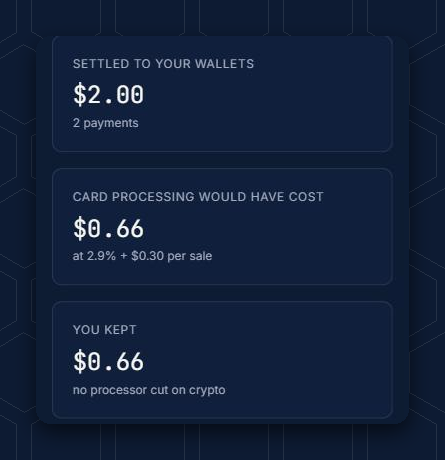
Reports (bottom menu → More → Reports) shows your sales, which coins customers use, tax and tips, and more. Settlement & fees even shows what card processing would have cost you on the same sales.
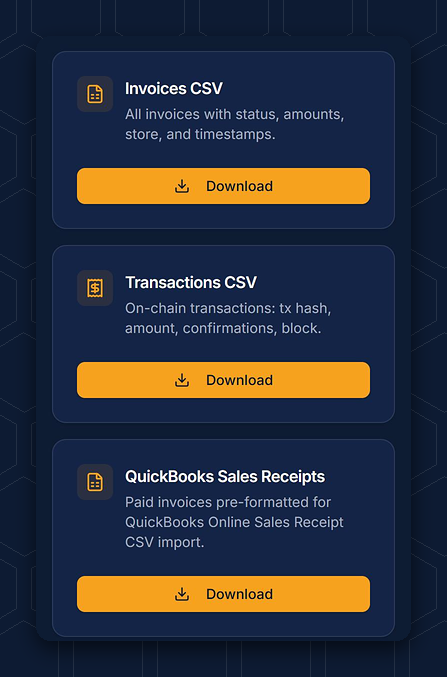
Exports (More → Exports) downloads your invoices and transactions as CSV files — including a file ready to import into QuickBooks Online, with the import steps on the page.
Customers (More → Customers) lists customers who gave an email, with their purchases. You can download it as a CSV.
4 — Get alerts
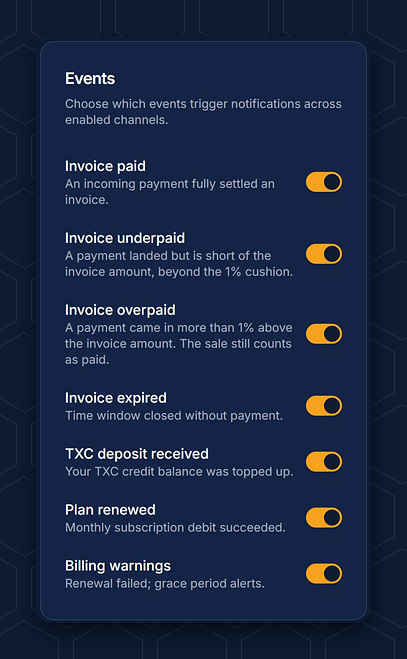
Notifications (More → Notifications) sends alerts by email or Telegram. Pick the events you care about — for example Invoice paid, Invoice underpaid ("short of the invoice amount, beyond the 1% cushion"), Invoice overpaid and Invoice expired. Each store can have its own settings.
🐝 Connect Telegram — that's also how NectarPay warns you the moment any wallet key on your store changes (see Step 4).
5 — When a payment looks wrong
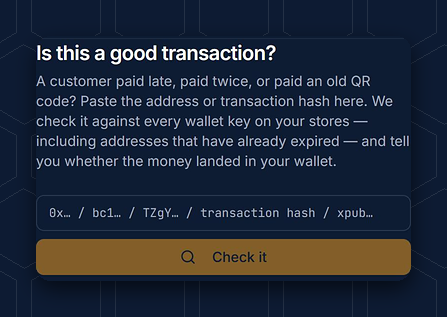
Customer paid late, paid twice, or paid an old QR code? Open More → Verify payment ("Is this a good transaction?"). Paste the address or transaction hash and tap Check it — NectarPay checks it against every wallet key on your stores, including expired addresses, and tells you whether the money landed in your wallet.
6 — Add your team
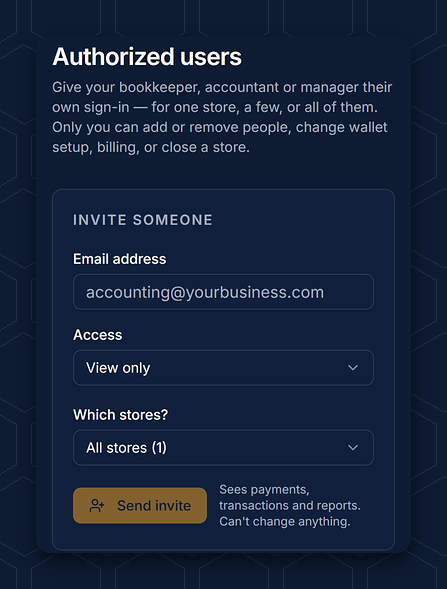
Open Account (in the left menu on a computer) → Authorized users. It gives your bookkeeper, accountant or manager their own sign-in, for one store or all of them:
🐝 View only — sees payments, transactions and reports. Can't change anything.
🐝 Manager — also creates payment requests, runs terminals and sees wallet balances.
🐝 Full access — also wallet settings and API keys.
Bee careful 🐝: give Full access only to someone you'd trust with your wallet settings.
Only you can add or remove people, change wallet setup, billing, or close a store.
7 — More to explore
🐝 Balances (store → Other Settings) — a read-only view of what's in the wallets linked to your store.
🐝 Buyer verification (KYC) (store → Other Settings) — optional checks on buyers. None is the recommended default.
🐝 eGiving (store → Give Back) — let customers who give to their church pay you with TSD. It's a fixed 10% community discount: 8% goes to their church and 2% to the program.
🐝 Public listing (store → Your Store Info) — show your store on the public "where to spend crypto" map.
🐝 More stores — Overview → New store.
🐝 Website plugins and the API — More → Docs.
🐝 Billing — your plan and TXC balance.
🐝 Account security — if you haven't already, turn on 2FA (see Step 2), and use Sign out of all devices if you ever spot a sign-in you don't recognize.
🐝 Close this store (bottom of the store page) — "Switches off terminals, API keys, share links and payment rails for this store." Bee careful 🐝 — only tap it if you really mean to close.

Questions? Buzz us — open a ticket.