

NectarPay for Merchants — Step 4: Choose What Your Store Accepts
Pick which coins your customers can pay with — TSD and the big dollar stablecoins are on from the start.
What this step does: decides which coins your customers can pay with.
You'll need: your store, linked to your Beekeeper wallet (Step 2 or 3).
Where: the same Wallets & Chains page from Step 3 — open your store, scroll to Tech Stuff, tap Wallets & Chains. Each network has its own card further down the page.
The good news: linking your wallet already saved its xpubs (the watch-only keys from Step 2 or 3) for every network on this page. So adding a coin is just a switch or a tick, then Save — there's nothing new to set up in your wallet.
How each card works
Every network card has the same three parts:
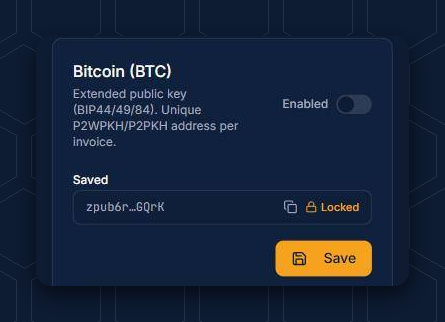
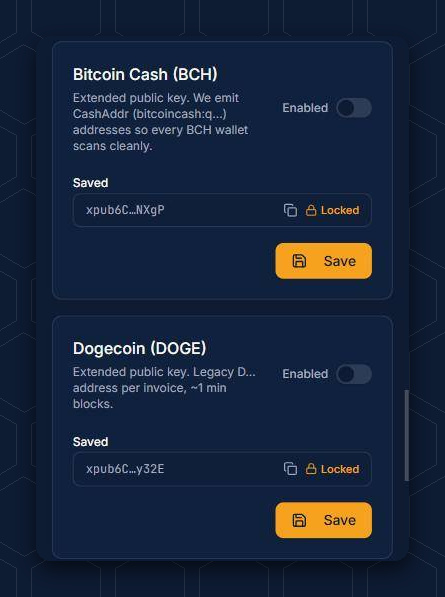
🐝 Enabled — the switch that turns the whole network on or off for your store.
🐝 Accept on this network — tick exactly which coins you'll take there. They all land at the same address in your wallet.
🐝 Save — nothing changes until you tap it.
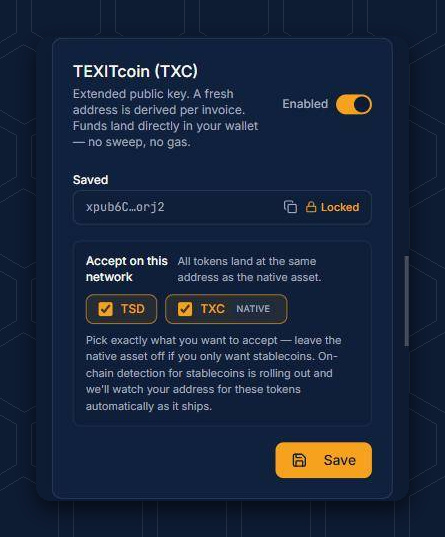
1 — TEXITcoin (TXC)
TSD is already ticked. Tick TXC too if you want it, then tap Save.
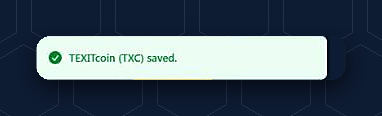
You'll see "TEXITcoin (TXC) saved."
2 — EVM (Ethereum, Base, BSC and more)
One card covers every EVM chain. Tick the coins you want (USDC, USDT and PYUSD are the most-used dollar stablecoins), then tap Save.
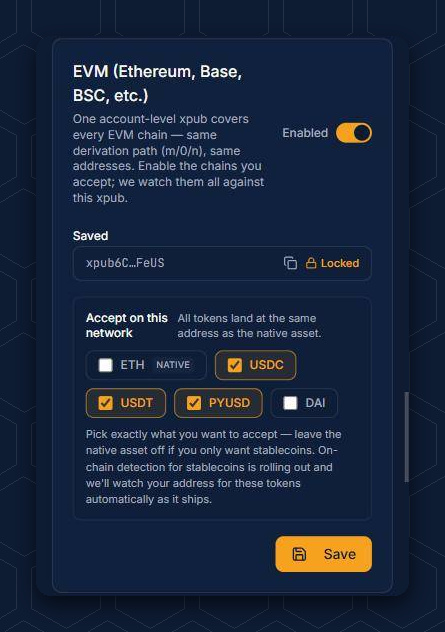

NectarPay's own advice on that card: "leave the native asset off if you only want stablecoins." Stablecoins are built to hold their dollar value, so a $20 sale stays worth about $20.
3 — Bitcoin and the rest
The rest stay off until you switch them on. To add Bitcoin, Litecoin, Bitcoin Cash, Dogecoin, Dash, Tron or Solana, flip its Enabled switch and tap Save. Tron and Solana also let you tick which coins you'll take there (Tron: TRX, USDT, USDC · Solana: SOL, USDC, USDT, PYUSD). (ZCU has its own Accept ZCU switch, on the same addresses as your EVM wallet.)
Bitcoin Lightning has its own card, right under Bitcoin, with an Accept Lightning switch. It works differently from the others — as the card says: "Payments arrive on the Nectar.Pay node and are paid out on-chain once your balance crosses the payout threshold." The Bitcoin payout address is filled in from your Bitcoin wallet for you. Turn on Accept Lightning and tap Save.
Note: until it's paid out, Lightning money sits on NectarPay's node — it doesn't go straight to your wallet like the other coins.
4 — Payment confirmation (optional)
(🍯 see "The sticky stuff" below)
Near the top of the page, Payment confirmation sets how quickly a payment counts as paid, for every chain on your store. It also holds the TSD instant accept switch — TSD payments "settle the moment they hit the mempool — typically under a second at the counter," up to the cap you set.
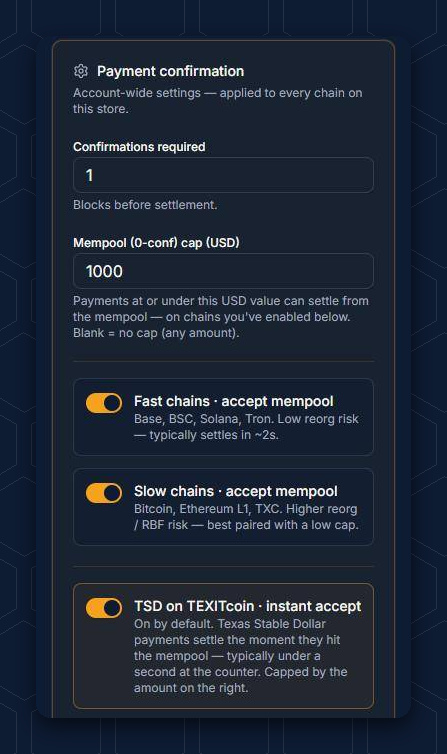
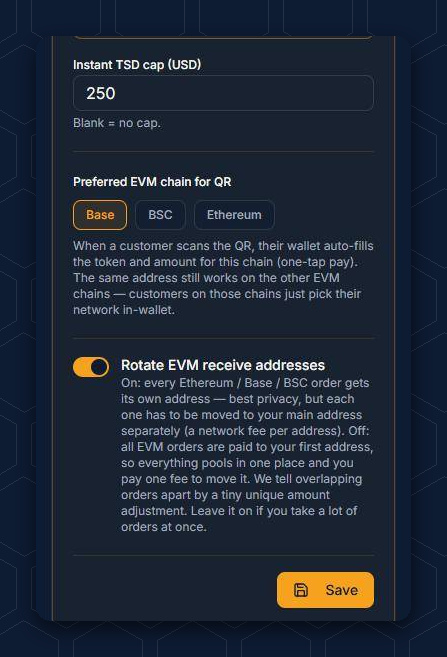

Most stores can leave these as they are. The one worth knowing is the Instant TSD cap — the biggest TSD sale that counts as paid instantly. It's $250 to start. If you sell bigger-ticket items and want those to clear instantly too, raise it and tap Save.
🍯 The sticky stuff about confirmations
When a customer pays, the payment first lands in the mempool, the network's waiting room, and NectarPay sees it there within seconds. If the sale is under your Mempool (0-conf) cap, the till shows PAYMENT RECEIVED right away. (We tested it: a $1 Bitcoin sale showed paid in about 10 seconds.)
If the sale is over your cap, the till waits until the payment is written into a block. That's a confirmation, and how long it takes depends on the chain:
🐝 Confirmations are a double-edged stinger. They protect you from a scammer, but they make your customer wait. Until a payment is written into a block, it isn't final. The sender could still replace it or "double-spend" those coins somewhere else. Once it's in a block (1 confirmation) it sticks, and it gets harder to undo with every block after that. That's why only small sales (under your cap) count as paid at the mempool, and why bigger sales should wait for at least 1 confirmation, especially on the slower chains. On the fast chains, even 2 or 3 confirmations take only a few seconds.
| Chain | New block about every | Typical wait for 1 confirmation |
|---|---|---|
| Bitcoin | 10 min | about 10 min |
| Bitcoin Cash | 10 min | about 10 min |
| TEXITcoin (TXC) | 3 min | about 3 min |
| Dash | 2.6 min | about 2.6 min |
| Litecoin | 2.5 min | about 2.5 min |
| Dogecoin | 1 min | about 1 min |
| Ethereum | 12 sec | about 12 sec |
| Tron | 3 sec | about 3 sec |
| Base | 2 sec | about 2 sec |
| BSC | 0.75 sec | under 1 sec |
| Solana | 0.2 sec | under 1 sec |
🐝 These are averages. On Bitcoin-style chains each new block is a race, so one can come early or late.
5 — Your record
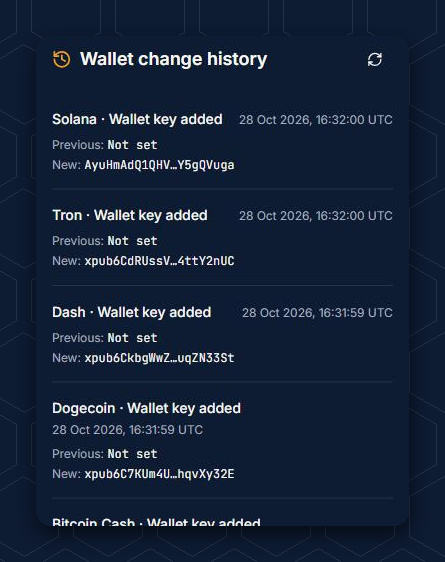
At the bottom, Wallet change history lists every wallet key added or changed on your store, with the date and time (UTC).
🐝 See a change you didn't make? Someone may be trying to send your payouts to their wallet. Act fast:
🐝 Stop taking crypto at the till until it's fixed.
🐝 On your Account page, tap Sign out of all devices and turn on 2FA. Then secure the email (or Google) account you sign in with, because a key change needs a code sent there.
🐝 Put your keys back: tap Re-link wallet to change xpubs, and in Beekeeper go to Settings → Ecosystem link, paste the link, tap Read, then Share xpubs.
🐝 Ring up a $1 test sale and pay it yourself. When it shows up in your Beekeeper, you're back in business.
🐝 Then open a ticket so we can help find out what happened.

Next: Step 5 — Take your first payment
Questions? Buzz us — open a ticket.