

NectarPay for Merchants — Step 2: Create Your Merchant Account
Sign up for NectarPay and set up your store — step by step, with pictures.
What this step does: creates your NectarPay merchant account and your store — and links the Beekeeper wallet you set up in Step 1.
You'll need: an email address, a phone, tablet or computer with a web browser, and your Beekeeper wallet from Step 1.
Don't have your wallet yet? Tap Skip for now on Screen 3 and link it in Step 3.
Bee ready 🐝: open Beekeeper and unlock it before you start. On Screen 3 you'll scan a QR with it, and that QR only lasts about 5 minutes.
Start here
Go to app.nectar-pay.com/signup. Sign-up has 5 short screens: 1 Create account · 2 Your business · 3 Link wallet · 4 Terminal defaults · 5 You're live
Screen 1 — Create account
Pick how you want to sign in: Continue with Google, Continue with email, or Continue with TXC wallet.
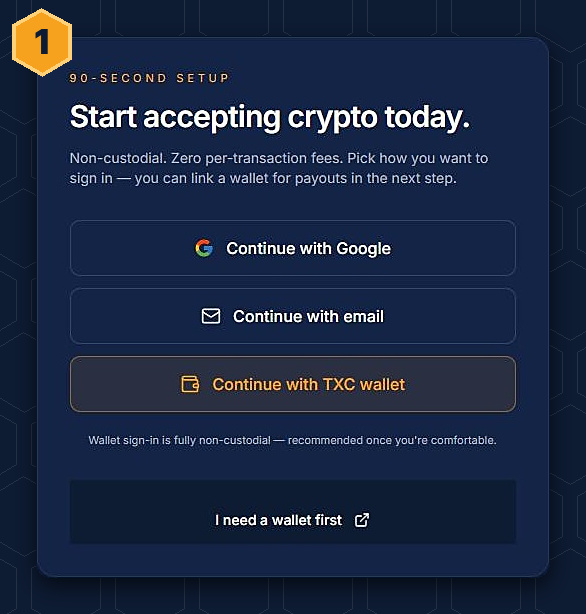
Using email? Type your email and tap Email me a sign-in code. There's no password — NectarPay emails you a short code. Open the email on any device, type the code in, and tap Sign in with code.
Using a TXC wallet? NectarPay says wallet sign-in is fully non-custodial — "recommended once you're comfortable."
Screen 2 — Your business
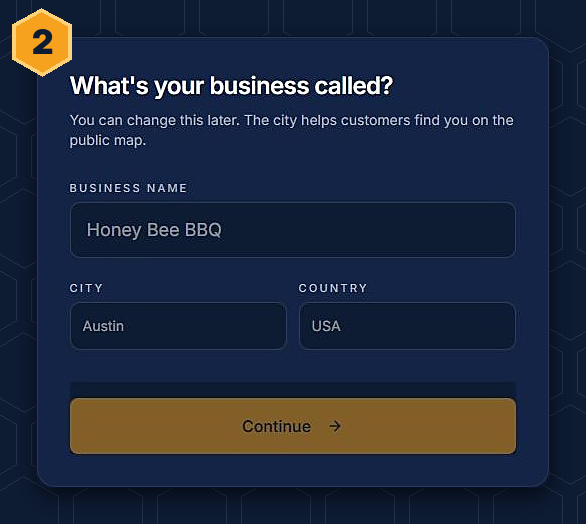
Type your Business name, City and Country, then tap Continue. You can change these later — and once you turn on Public listing (Step 6), your city puts you on the public "where to spend crypto" map.
Screen 3 — Link wallet
NectarPay shows a QR code. It lasts about 5 minutes.
In Beekeeper, on your wallet's home screen, find the Link to Nectar Pay box. Tap the camera button, scan the QR, then tap Share xpubs. That lets NectarPay see payments come into your wallet; it can't move your money.
Signing up on the same phone that has Beekeeper? Tap Skip for now. Step 3 shows another way to link.
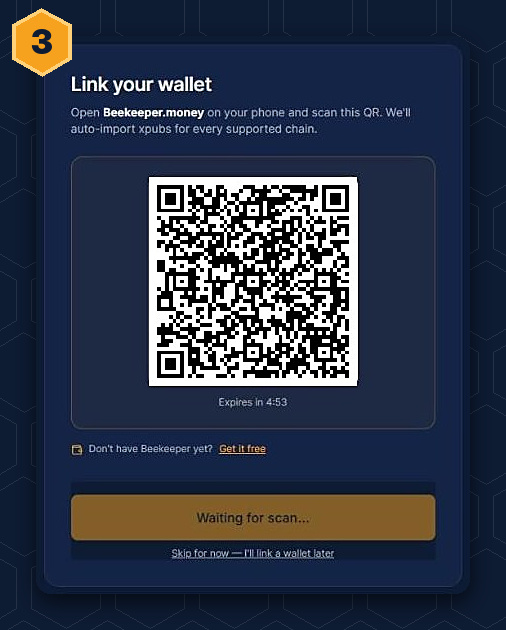

This screen shows a ✓ even when you skip it. A ✓ here does not mean your wallet is linked — Step 3 of this series shows you how to check.
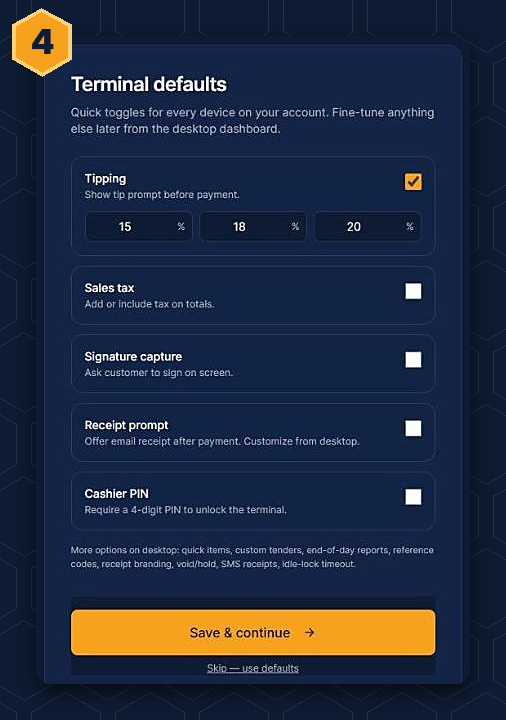
Screen 4 — Terminal defaults
Quick settings for every terminal on your account: Tipping (15% / 18% / 20%), Sales tax, Signature capture, Receipt prompt and Cashier PIN. Change what you need, then tap Save & continue — or Skip — use defaults and fine-tune later.
These are only starting points. Each till can change its own tip choices and tax rate later — Step 5 shows where.
Screen 5 — You're live
That's it — your hive is open for business! NectarPay shows what you can do next:
🐝 Use this device as a terminal — "Already on the terminal? Skip the pairing code — we'll set it up right now."
🐝 Install POS app on your terminal — for Senraise terminals
🐝 Take a test payment — "Open the POS on any phone or tablet. No app needed."
🐝 Pair another terminal — "Generate a 6-char code for a CryptoPOP or extra device."
🐝 Enable the chains you want
You don't have to do these now — Steps 3 to 5 walk you through them.
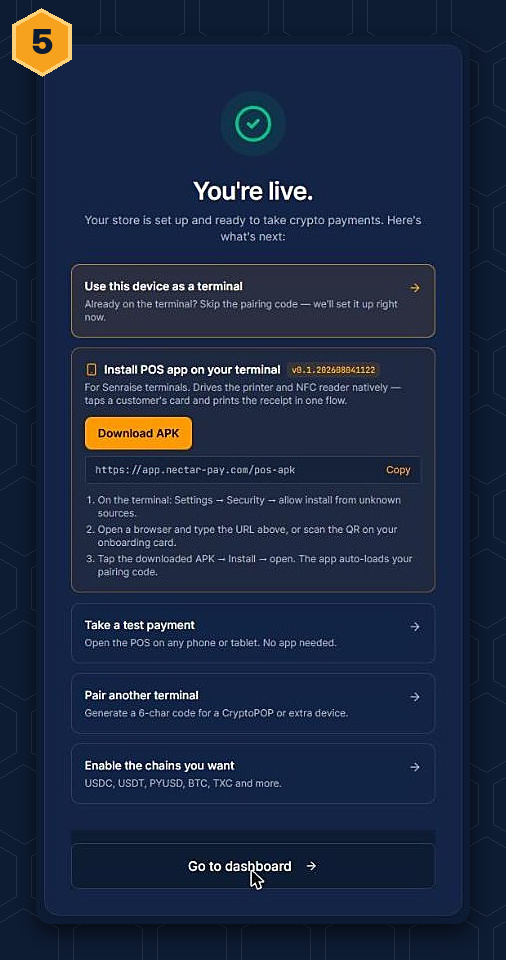
Tap Go to dashboard.
🐝 One more thing — protect your hive. Go to app.nectar-pay.com/account and tap Enable 2FA. It adds a 6-digit code from an authenticator app (like Google Authenticator) to your sign-in, so nobody can get in with just your email.
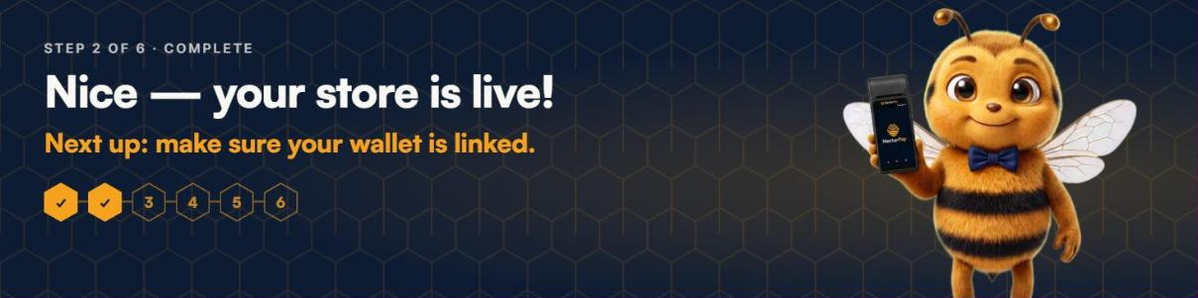
Next: Step 3 — Link your wallet to your store
Questions? Buzz us — open a ticket.