

NectarPay for Merchants — Step 1: Set Up Your Beekeeper Wallet
Turn on your Beekeeper wallet with your copper coin — scan, read the rules, set a password.
Who this is for: business owners who want to take crypto payments with NectarPay — at a counter, online, or both.
In this series:
Step 1 — Set up your Beekeeper wallet (you are here)
Step 2 — Create your merchant account
Step 3 — Link your wallet to your store
Step 4 — Choose what your store accepts
Step 5 — Take your first payment
Step 6 — Advanced features (optional — for when you're ready)
How NectarPay works, in one line: your customers pay straight into your own wallet. NectarPay never holds your money — it creates the payment request and watches for the payment.
What it costs: zero per-transaction fees. NectarPay has monthly plans, paid in TXC*: a Free plan with limits, Cheap ($19/mo) and Unlimited ($99/mo). Your dashboard's Billing page shows the current plans.
*Need TXC? Accept it from your customers (Step 4 shows how to turn it on), or see How to Buy TEXITcoin (TXC). Then send it to the deposit address on your Billing page.
Step 1 — Set up your Beekeeper wallet
What this step does: turns on your Beekeeper wallet — the wallet your customers will pay into.
You'll need: your copper Cold Storage Coin and a phone with a camera. (No coin yet? Tap Get a Cold Storage Coin on Beekeeper's first screen. Don't want to wait? Tap Get some words and paste your 12 words into the scan box instead. Keep those words safe; they are your wallet.)
Why Beekeeper? It's a self-custodial wallet for Texas Stable Dollar (TSD), other dollar stablecoins like USDC, USDT and PYUSD on Ethereum, Base and BSC, plus TEXITcoin (TXC), Iskander Coin (ISK), Zero Chill Units (ZCU), Bitcoin, Litecoin, Dogecoin and more — you choose which ones your store accepts in Step 4. Your 12 words stay on your device, encrypted with your password. Nobody else holds your money — not NectarPay, not Beekeeper (one exception: Bitcoin Lightning, see Step 4).
Start here
On your phone, go to beekeeper.money. Activation has 3 short parts across the top: 1 Scan · 2 Rules · 3 Password.
1 — Scan your coin
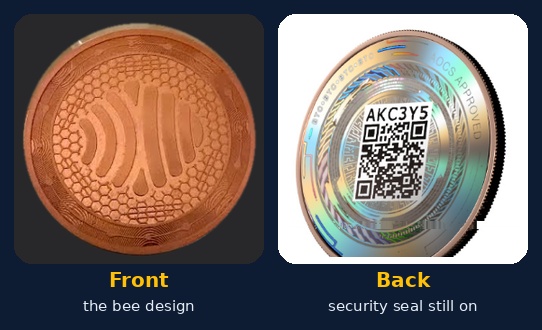

Pry the security seal off the back of your coin with a fingernail. Wipe off the sticky residue with a soft cloth and a little WD-40 or nail polish remover — never a knife or anything sharp, it can damage the etched words.
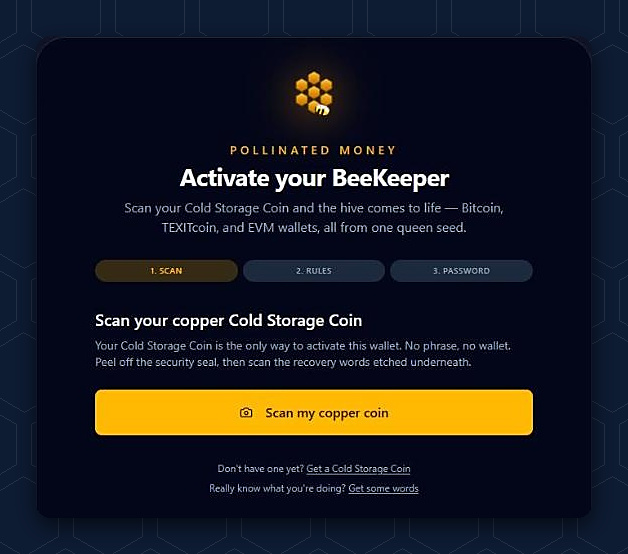
Then tap Scan my copper coin and, in good light, point your camera at the words etched on the back.
2 — Read the rules
When the scan works you'll see "Copper Coin recognized." Beekeeper then shows four rules. Read each one — they're there to keep your money yours.
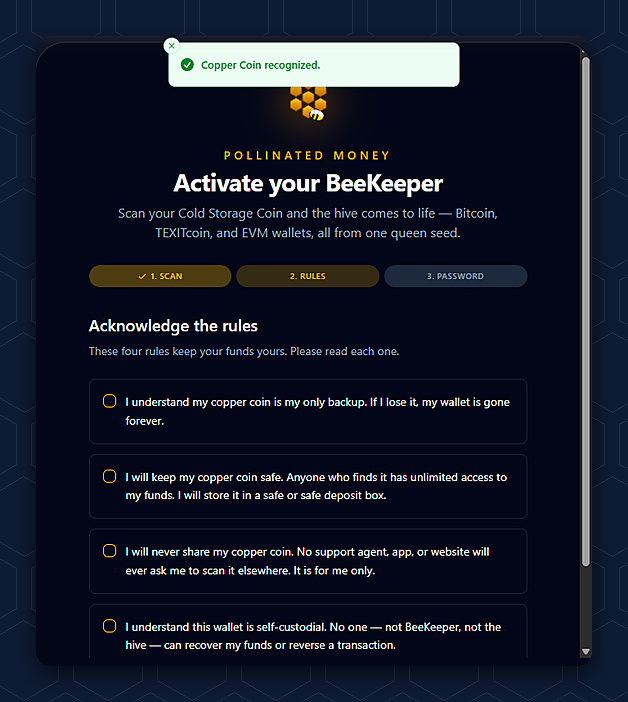
Make sure you understand each one, then tick all four and tap I agree — continue.
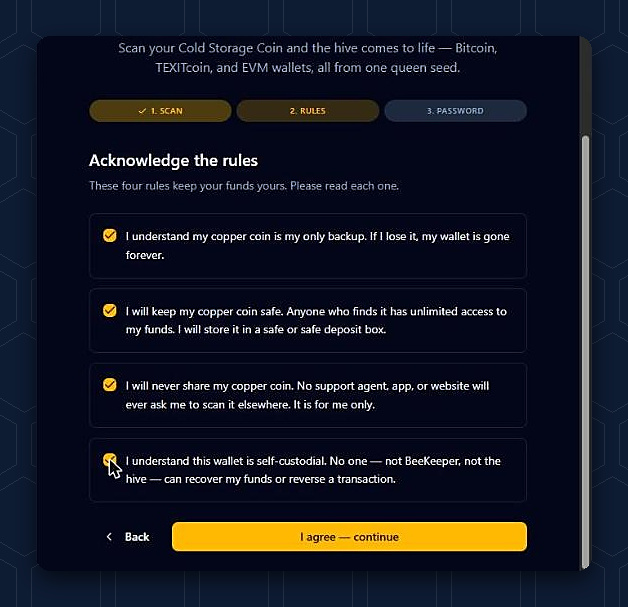

Rule 3 matters most: no support agent, app or website will ever ask you to scan your coin somewhere else. If anyone asks — even someone who says they're from us — it's a scam.
3 — Set a password
Choose a Wallet password, type it again under Confirm password, then tap Activate wallet.
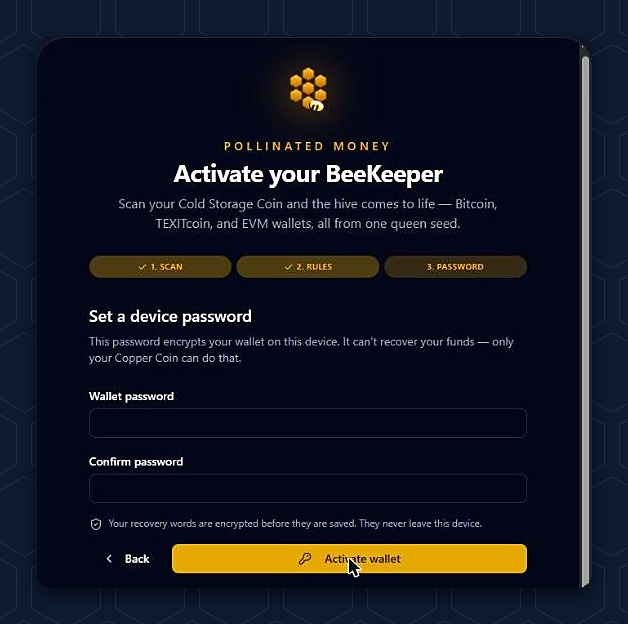
This password locks the wallet on this device. It can't recover your money — only your copper coin can do that. So keep the coin safe, and don't forget the password.
You're in!
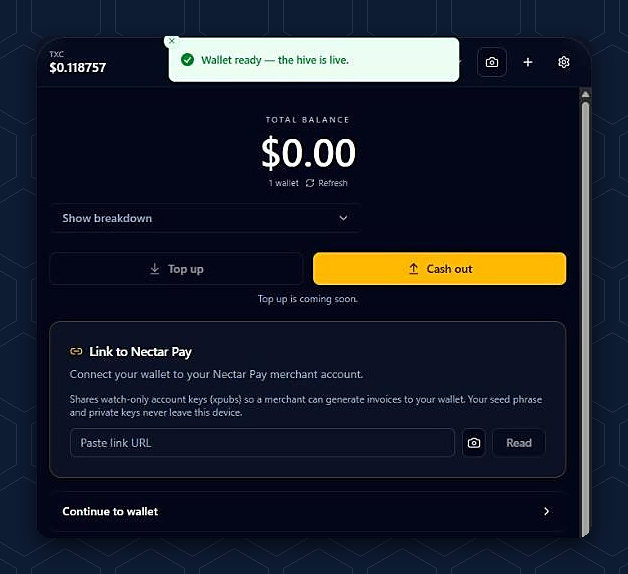
Beekeeper says "Wallet ready — the hive is live." You'll land on your wallet, with a Link to Nectar Pay box — you'll use it to link your store in Step 2.
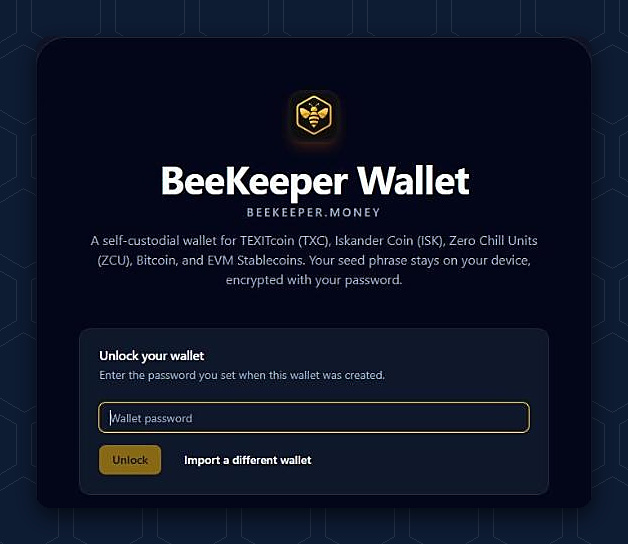
Coming back later? Beekeeper locks itself. Type your wallet password and tap Unlock. Bee careful 🐝: don't tap Import a different wallet unless you want to wipe out the wallet you have on this device.
Next: Step 2 — Create your merchant account
Questions? Buzz us — open a ticket.