

Paying with NectarPay — Step 3: Paying at the Counter or Online
Step by step: paying at a NectarPay counter or from a payment link — pick your coin, scan, send.
Who this is for: shoppers who want to pay a merchant with crypto through NectarPay — at the counter or online.
In this series:
Step 1 — What is NectarPay?
Step 2 — The wallet you'll need
Step 3 — Paying at the counter or online
Step 4 — After you pay
Step 5 — Mistakes and refunds
Step 6 — Where to spend
Step 3 — Paying at the counter or online
What this step does: walks you through paying, screen by screen.
At the counter
The cashier types the price. Their screen may ask about a tip first — that's for the merchant to set up.
1 — Pick how you'll pay
The till shows "Customer pays with" and the coins this merchant takes. Tell the cashier which one you want (or tap it, if they turn the screen to you).
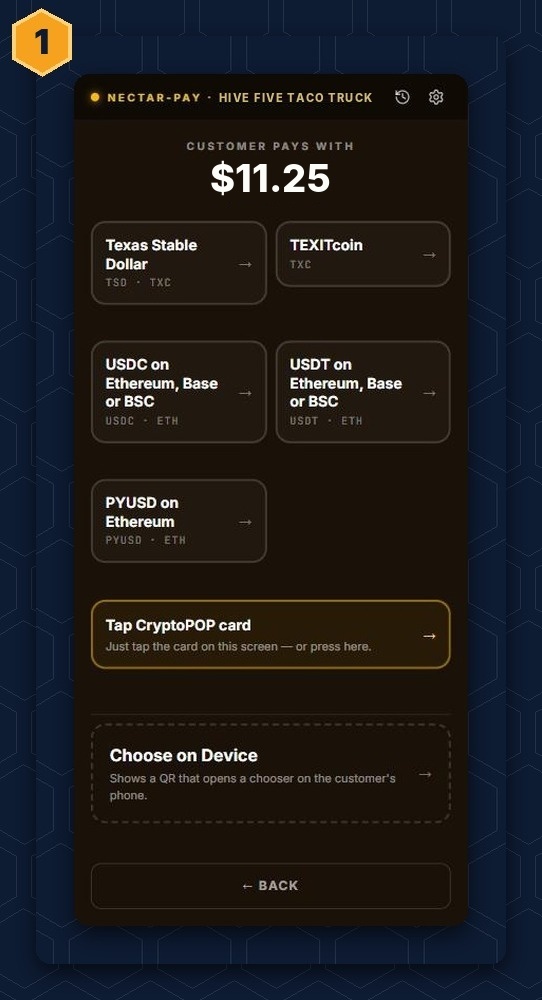
Choose on Device puts a QR on the till that opens the same list on your phone, so you can pick there.

You'll also see Tap CryptoPOP card. CryptoPOP (Proof of Participation) is NectarPay's rewards partner. If you have a CryptoPOP card, you can tap it right on the till's screen. As the screen says: "Just tap the card on this screen — or press here."
2 — Scan and send
The till shows the amount, a QR code and a "listening" timer.
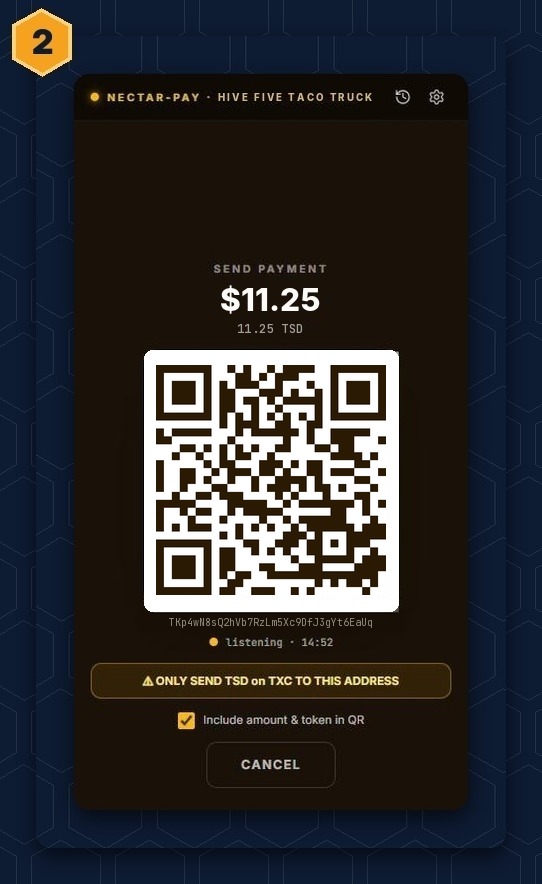
Open your wallet, tap Send or Scan, and scan the QR. Check two things before you send:
🐝 The amount matches the screen.
🐝 The coin and network match. The till spells it out — for example "ONLY SEND TSD on TXC TO THIS ADDRESS".
Then send. The till shows Payment received, usually within a few seconds. For a bigger payment, the merchant may wait for a network confirmation, which takes longer.
If your wallet won't scan
Some wallets can't read the full QR. Ask the cashier to untick "Include amount & token in QR". The new QR has just the address — then type the amount into your wallet yourself, exactly as shown.
Online or from a link
1 — Open the payment page
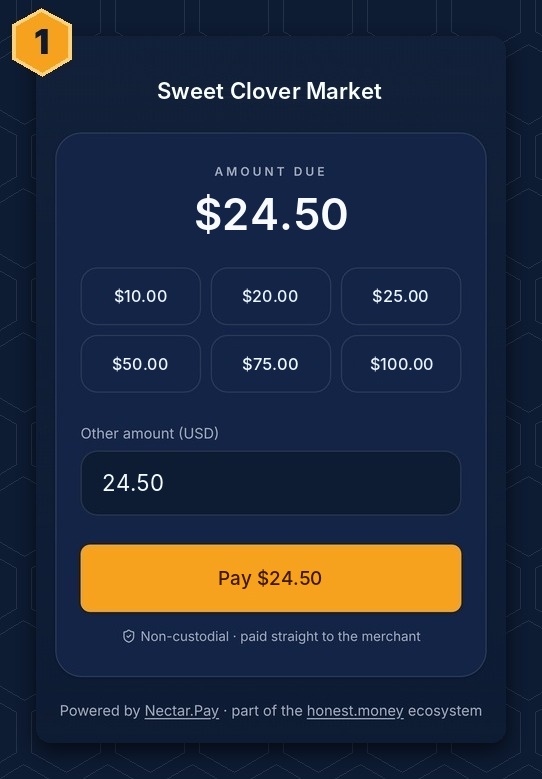
Tap the merchant's link. Pick an amount (or type one under Other amount) and tap Pay.
2 — Choose your coin
You'll see "Choose how you'd like to pay". Tap the coin you want. A timer at the top shows how long you have — 15 minutes.
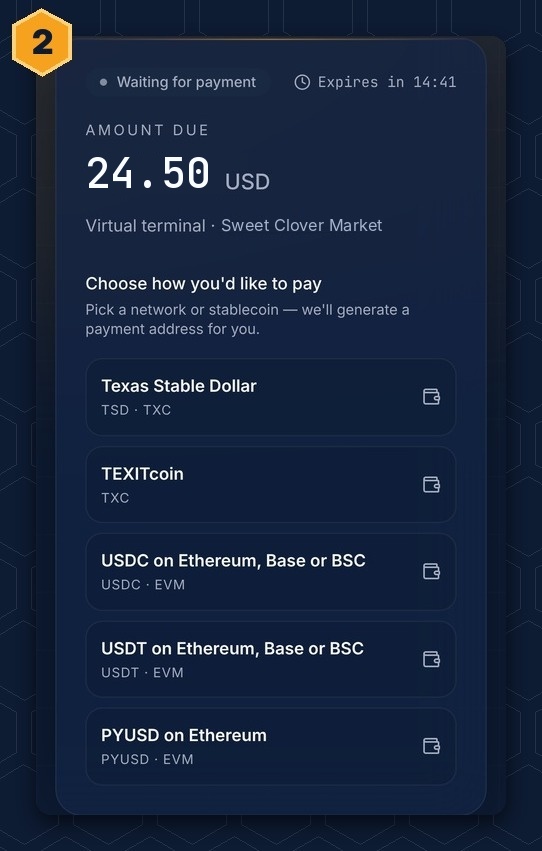
3 — Scan, tap or copy
You'll see the exact amount and a QR code.
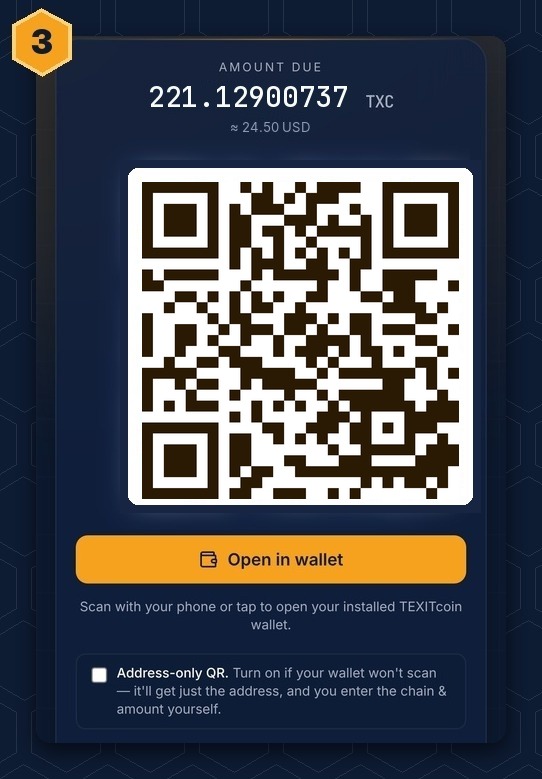
🐝 On a computer: scan the QR with your phone wallet.
🐝 On your phone: tap Open in wallet to open your wallet app, or Copy the address further down the page.
🐝 Wallet won't scan? Tick Address-only QR and type the amount yourself.
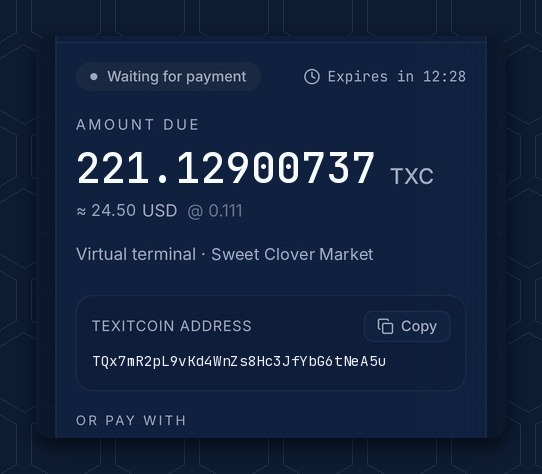

Send the exact amount, on the right network, before the timer runs out. If it runs out, ask the merchant for a new payment link.
Next: Step 4 — After you pay
Questions? Buzz us — open a ticket.